In this tutorial
Before you start
What you’ll need.
- An agency account with access to Clients and available client capacity on its current plan.
- A CSV or XLSX file no larger than 10,240 KB, with a name and valid email for every row.
- A reviewed copy of your source list. Import is not a duplicate-merging tool.
- Step 1
Open the client directory
Open Clients in the agency panel. Select Import to open the file dialog. The directory is also where you will verify the imported records.
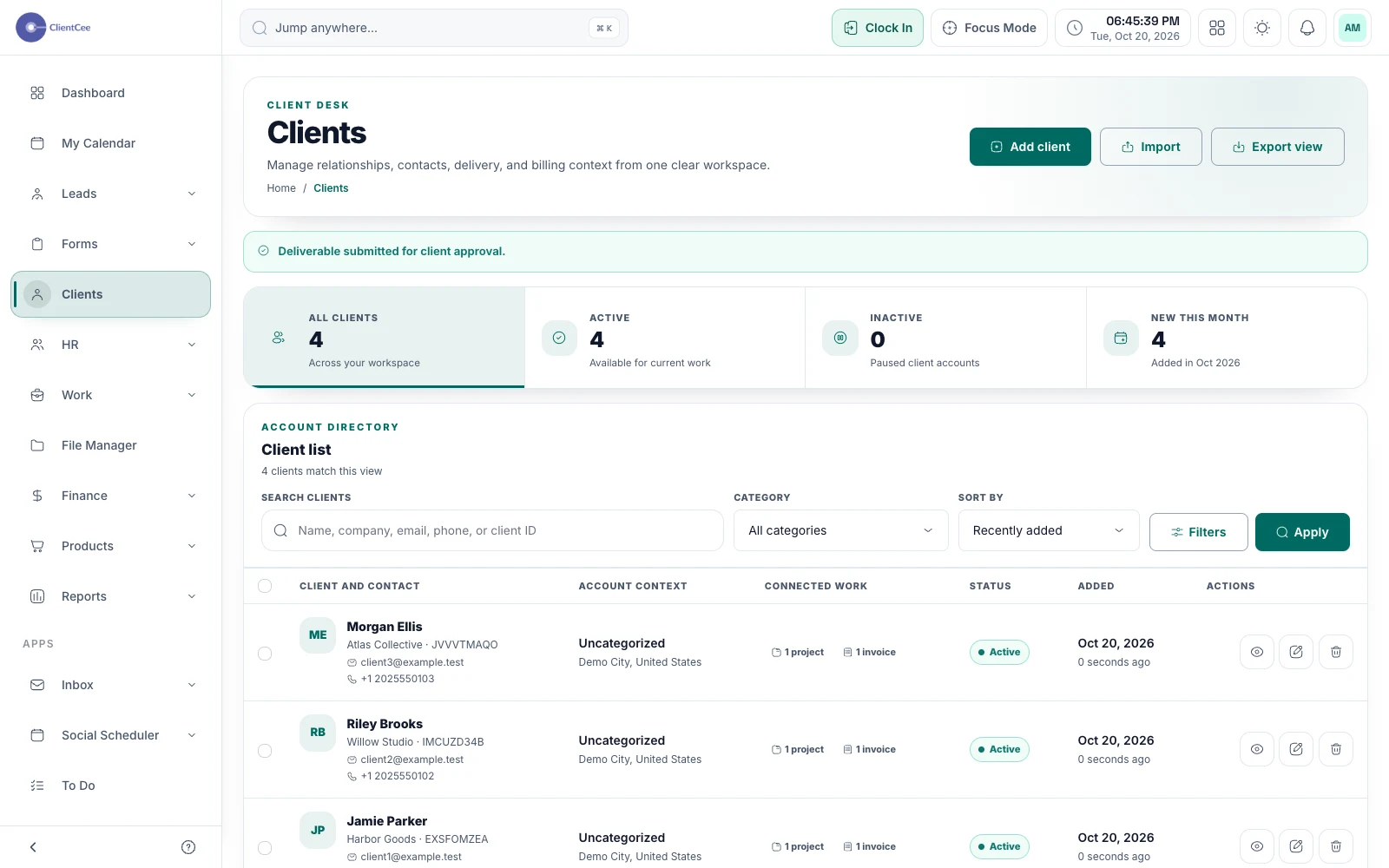
Client directory. Demo data. View full size ↗ - Step 2
Prepare your file from the sample
In the import dialog, select Download the import template. Keep the headings name, email, phone, company_name, address, city, country, status, category, and sub_category.
Name and email are required. Use active or inactive for status. Match category and sub_category to existing workspace categories; the import does not create missing categories. Enter country explicitly if you do not want the current United States default.
- Step 3
Choose and import the list
Select Choose a CSV or XLSX file, then Import clients. Keep the dialog open until the application reports the result. Files are removed from temporary storage after the attempt.
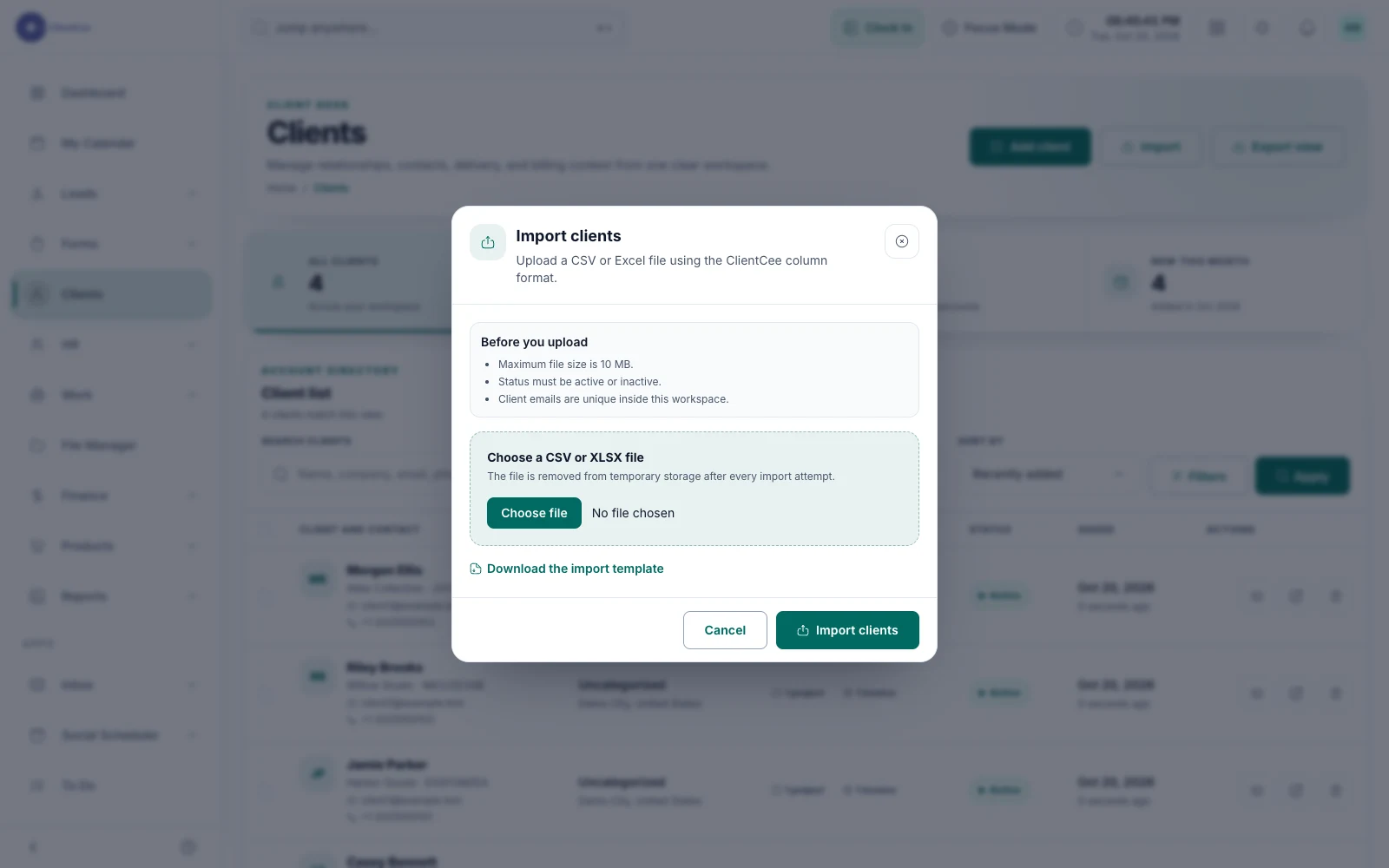
Client import dialog. Demo data. View full size ↗ - Step 4
Check the result before inviting clients
Read the success or row-error message, including any rows skipped because of the plan limit. Search the directory and open a sample of imported records.
Imported clients have portal login disabled. Review the record and configure access separately when you are ready.
You’re ready for the next step
Check the result.
The intended clients appear in your workspace with the correct contact details. You have checked any skipped rows or validation errors and have not assumed that portal invitations were sent.
When you need a little more clarity
Common questions.
Why was an email rejected?
The address must be valid and unique among clients in this company. Resolve duplicates in the source file and existing records before retrying. Do not assume the importer will update an existing client.
Why are categories empty?
The importer matches category names to existing workspace categories and subcategories. Create or correct those categories before importing if you need those links.
Can I assume every row was imported?
No. Check validation messages, plan-limit skips, and the actual directory. The importer does not provide a documented undo or duplicate-merge workflow.