In this tutorial
Before you start
What you’ll need.
- Access to Projects and a client record in your workspace.
- A project name, start date, and an agreed starting status.
- The scope, delivery responsibilities, and any agreed deadline.
- Step 1
Open the project creation screen
Open Projects in the agency panel and choose the create action. Start with the project essentials rather than filling every optional setting.
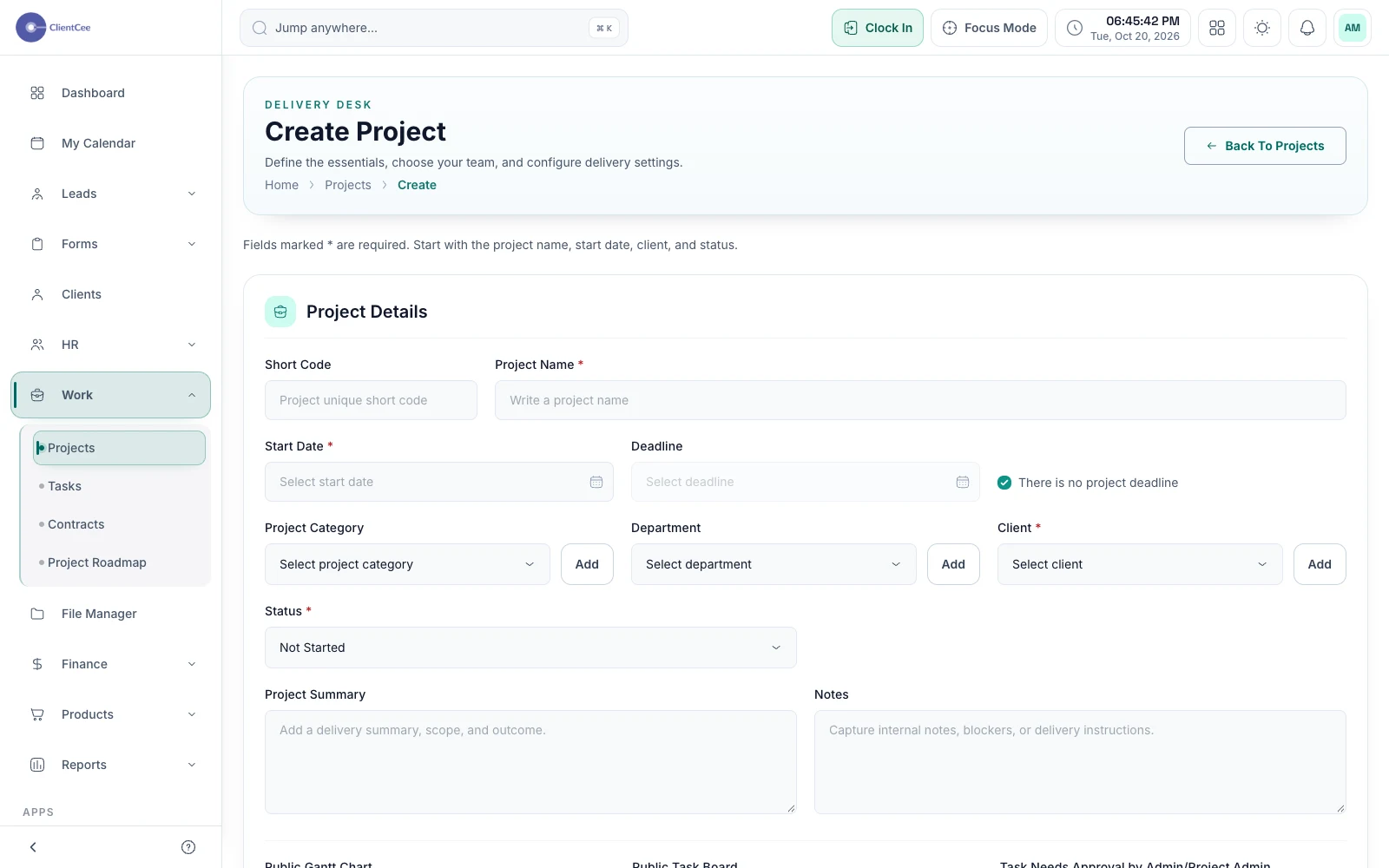
Create a project. Demo data. View full size ↗ - Step 2
Add the client and essential details
Enter the project name, select the client, and set the start date and status. If you enter a deadline, it must be on or after the start date.
Use a concise summary to explain the work. Budget, estimated hours, and delivery settings are optional and should reflect your actual agreement.
- Step 3
Choose the people doing the work
Select the workspace members who will work on the project. Check the available delivery and progress settings before saving.
Internal project setup and client portal publishing are separate decisions. Selecting a team member does not by itself publish the project to the client.
- Step 4
Save and check the overview
Save the project using the form action. Open its overview and verify the client, dates, team, and summary before creating tasks.
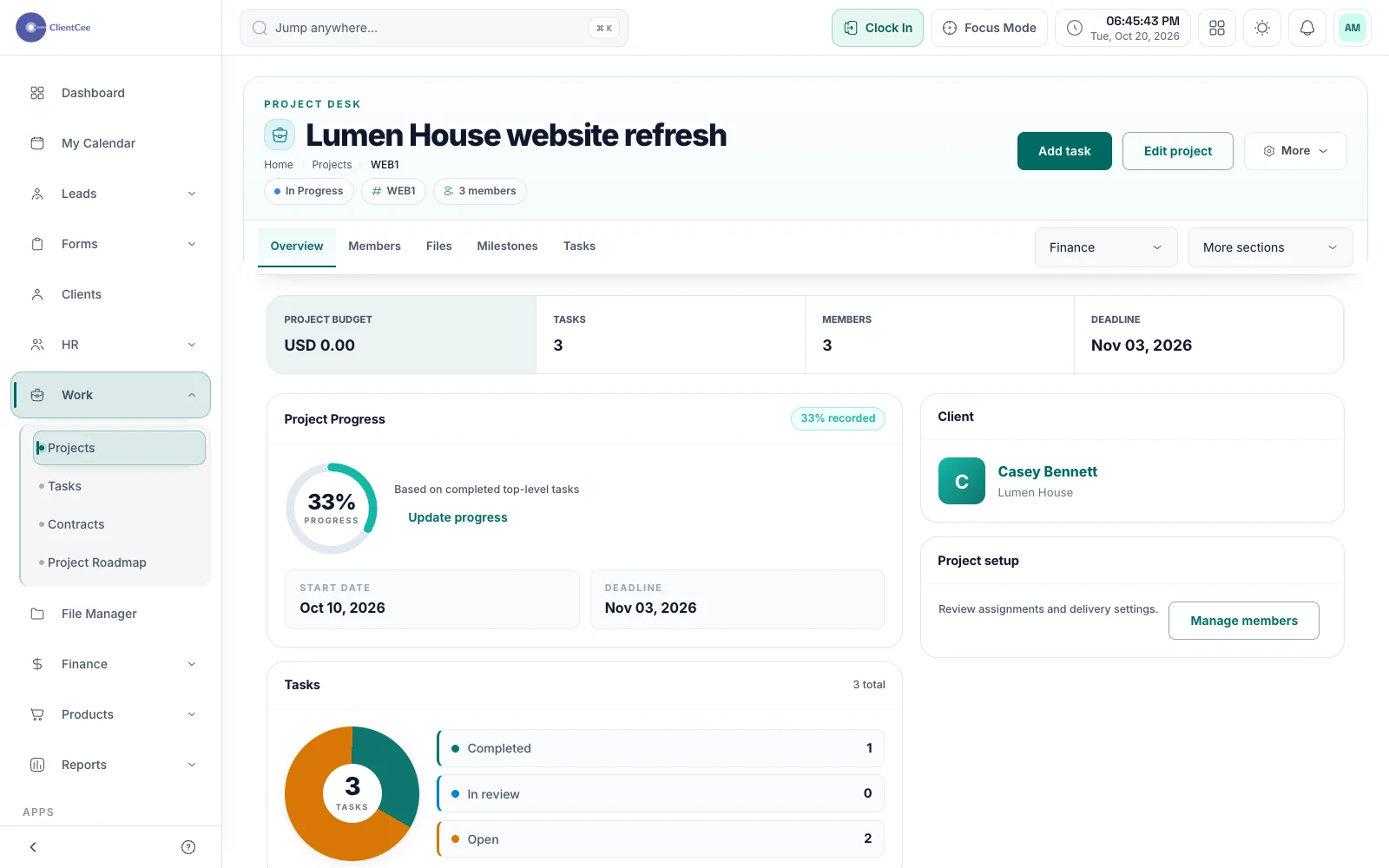
Project overview. Demo data. View full size ↗
You’re ready for the next step
Check the result.
The project is saved against the correct client, with the intended dates, status, and members. Your team can now add tasks and agree the first delivery milestone.
When you need a little more clarity
Common questions.
Why can’t I select a client or member?
The lists are restricted to the current workspace. Check that the record exists and that you have access to the relevant module and account.
Will clients immediately see the project?
Do not assume so. Client visibility is controlled separately through the client portal publishing settings. Check the client view before announcing that the project is available.