In this tutorial
Before you start
What you’ll need.
- Access to Tasks and an existing project in your workspace.
- A clear task title and an agreed person responsible for the next action.
- Any relevant due date, priority, and delivery context.
- Step 1
Start a task for the correct project
Open Tasks and the task creation screen. Select the project, or confirm a preselected project before entering the details.
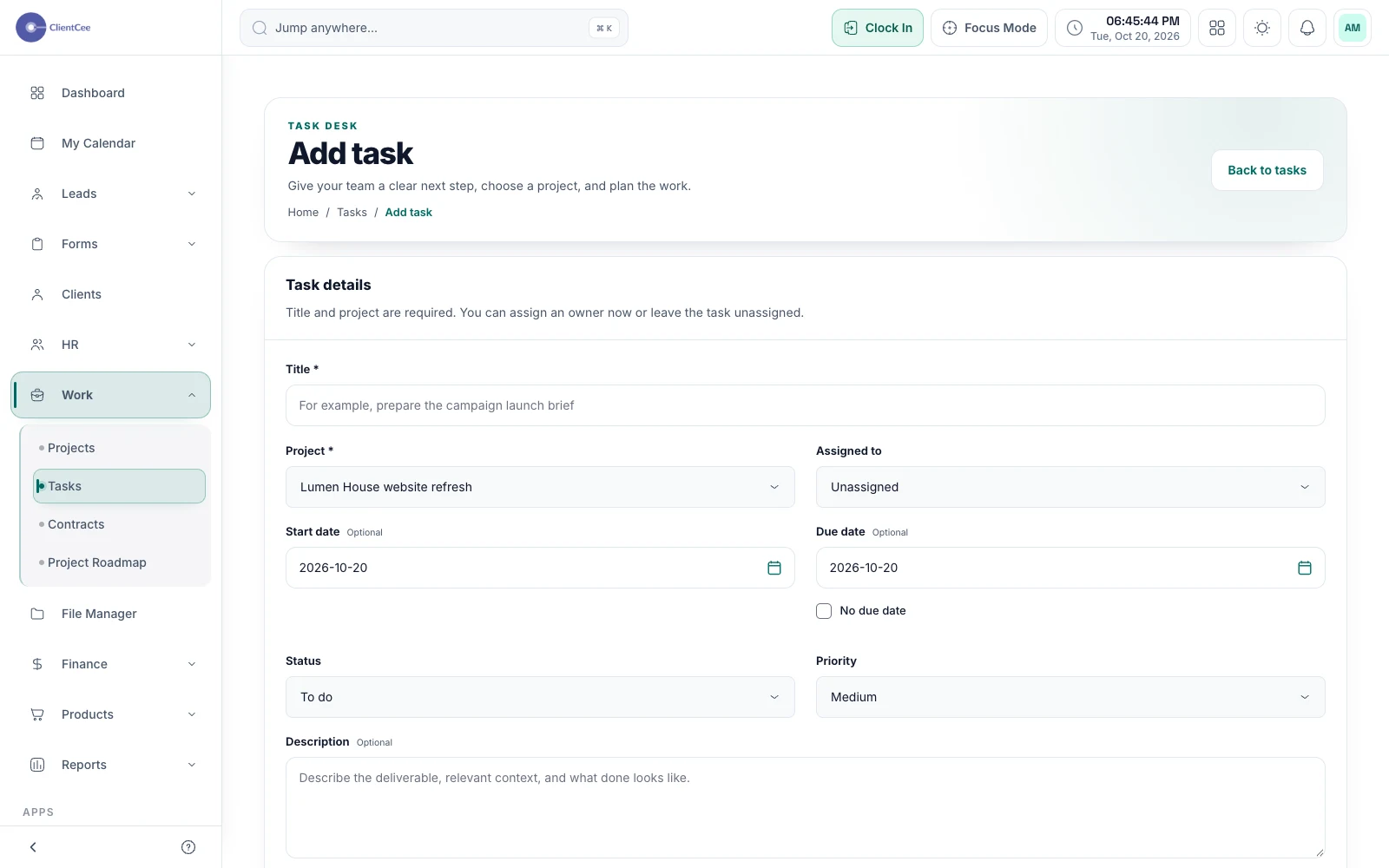
Create and assign a task. Demo data. View full size ↗ - Step 2
Describe a clear next action
Enter a short task title and enough description for the assignee to understand the expected result. Set the status, priority, and relevant dates.
Use project milestones or labels where they are available and useful. Avoid relying on a title alone for acceptance criteria.
- Step 3
Choose the assignee and save
Select the responsible person from the available workspace members. Leave a task unassigned only when that is intentional.
Select Create task to save it, or Save and add another to continue creating tasks for the project.
- Step 4
Check ownership in the saved task
Open the task and verify its project, assignee, status, and dates. Add files or collaboration details from the saved task where needed.
Assignment does not establish client visibility or prove that an external notification was delivered.
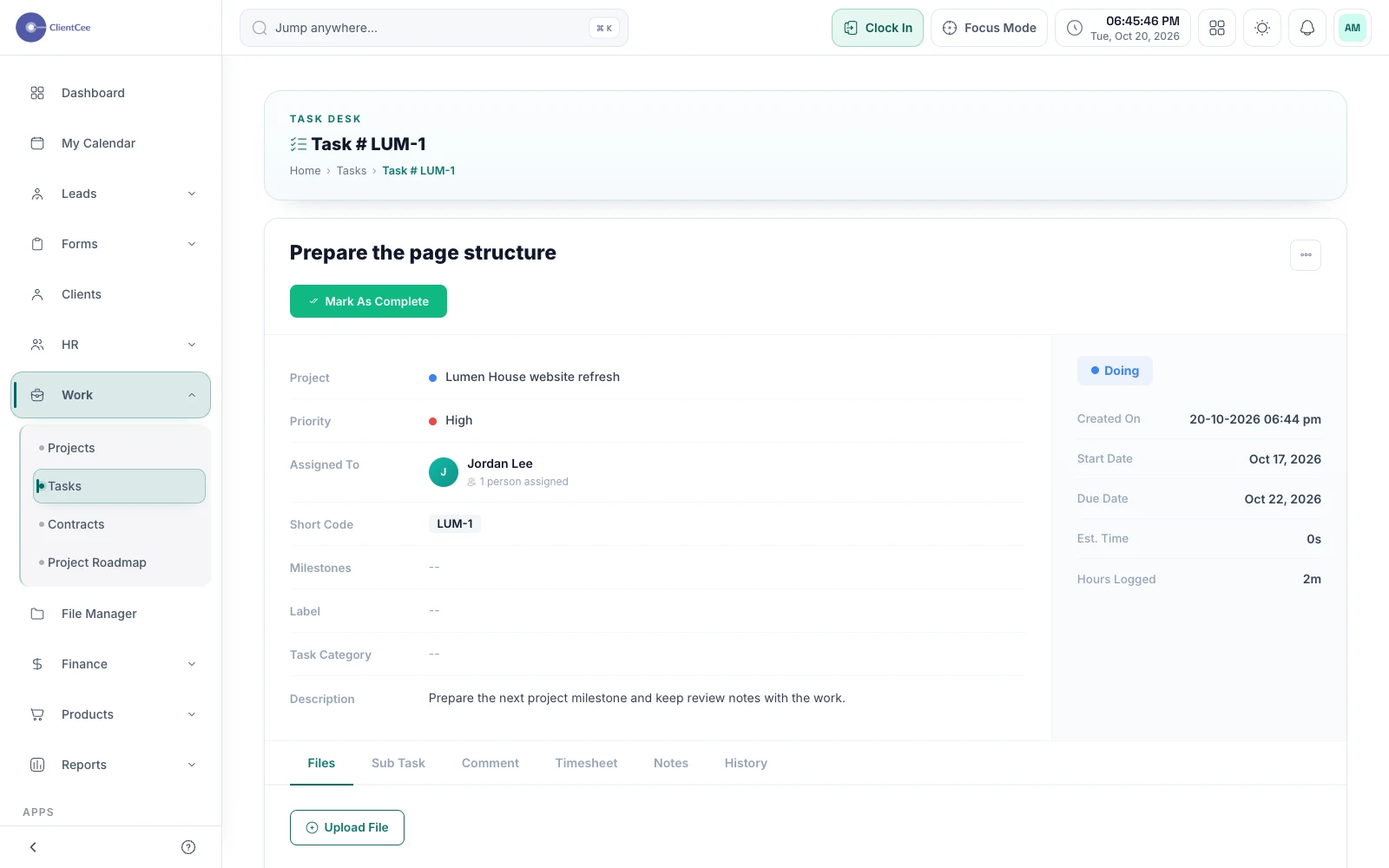
Task ownership and progress. Demo data. View full size ↗
You’re ready for the next step
Check the result.
The saved task belongs to the right project and shows the intended owner. Its expected result and due date are clear enough for the next person to act.
When you need a little more clarity
Common questions.
Why is a person missing from the assignee list?
Assignees are limited to the current workspace. Check that the person is an available member and that you are working in the correct agency account.
Does assigning a task share it with the client?
Assignment and client visibility are separate concerns. Review the project and portal settings rather than treating assignment as a publishing action.