In this tutorial
Before you start
What you’ll need.
- Access to the client portal controls and the Projects module.
- An active client with enabled, valid portal access for receiving the review notification.
- A project and document belonging to that client. The document file must be available.
- Step 1
Prepare the shared project and document
Open the client’s portal controls. Publish the project, associate the document with it, and make the document visible to the client. Check that its file is available.
Upload or correct the document through the client’s document controls if necessary. A private project or unavailable file cannot be submitted for approval.
- Step 2
Request a new approval
In Deliverable approvals, find Request a new approval. Choose the published project and eligible document. Enter a useful title and submission note, then submit the approval request.
A document already used in a deliverable approval history cannot be reused as a new version. Keep each submitted file distinct.
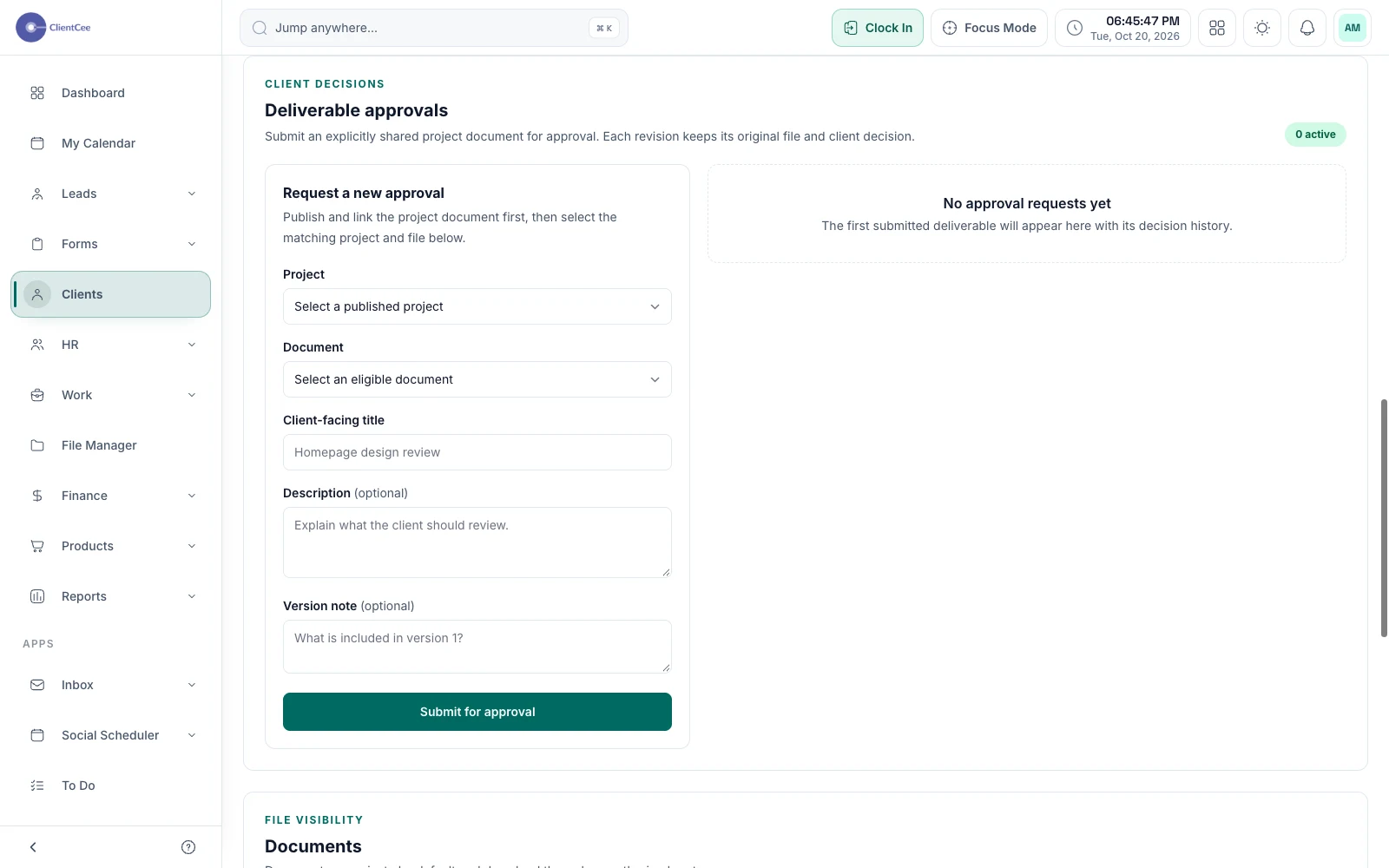
Request a deliverable approval. Demo data. View full size ↗ - Step 3
Show the client where to review
The client opens the shared project in their portal and finds the deliverable review section. They review the current version and choose approval or request changes.
The client view shown here uses synthetic data. A published request does not prove a notification reached an email inbox.
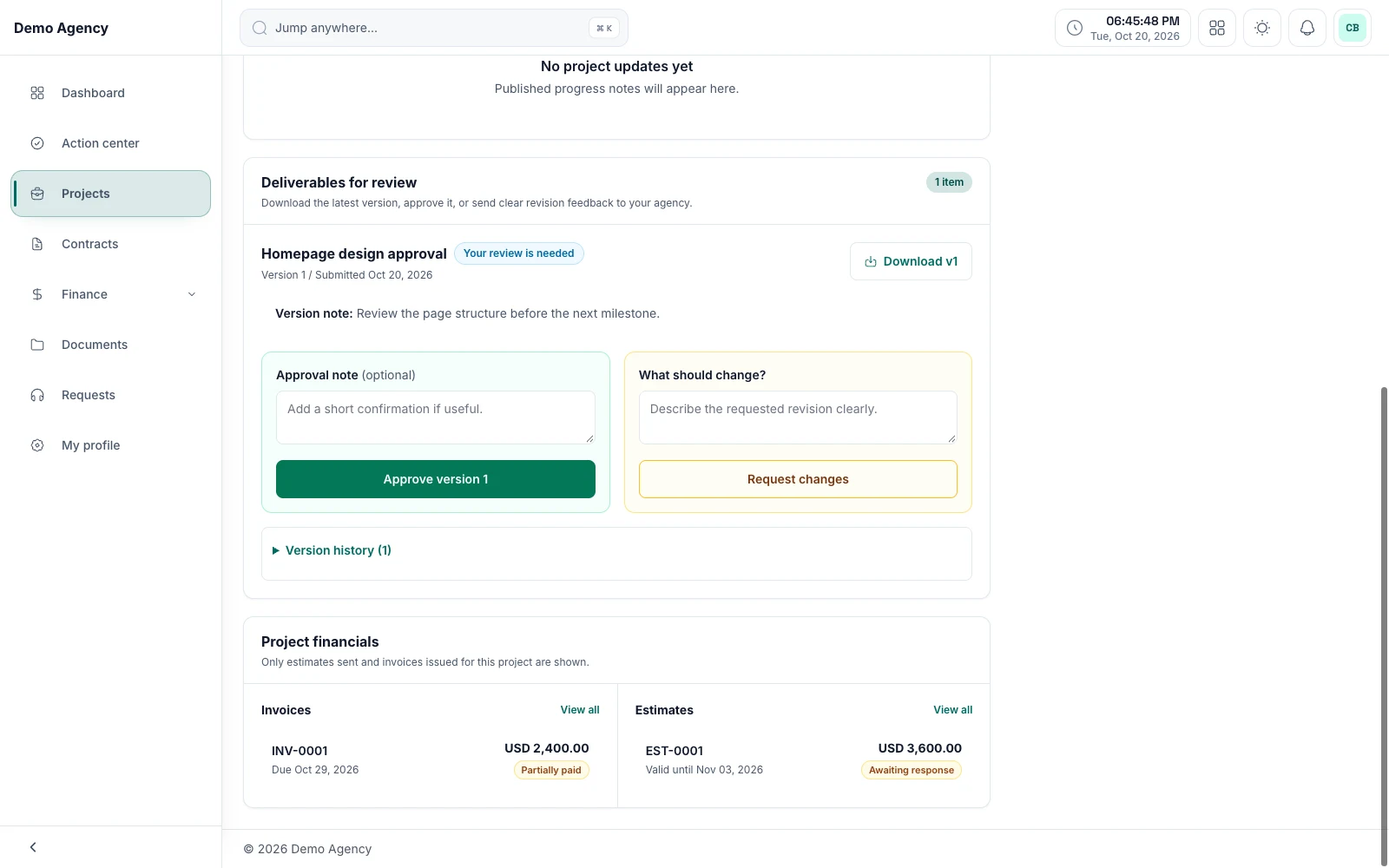
Client deliverable review. Demo data. View full size ↗ - Step 4
Follow the recorded decision
Check the recorded decision and feedback in the agency portal controls. If changes were requested, prepare a new available, published project document and use Submit revision.
A new version is accepted only after a changes-requested decision. Keep the version history as the reference for what was reviewed.
You’re ready for the next step
Check the result.
The correct client can see the submitted deliverable in their project, and the agency can follow the version and recorded review status. Any next revision follows the client’s actual decision.
When you need a little more clarity
Common questions.
Why can’t I select a project or document?
Publish the project and document to this client first, associate the document with that project, and check that its file is available. The Projects module must be enabled.
Why was no notification received?
Check active client portal access, the linked client user, company status, and delivery configuration. The saved review request and successful notification delivery are separate outcomes.
Why can’t I submit a revision yet?
A revision can be submitted only after the client requests changes. Use a new eligible document and reload if another person has changed the review version.