In this tutorial
Before you start
What you’ll need.
- Access to Invoices and a client record with the intended billing details.
- The agreed billable items, quantities, prices, currency, and due date.
- A real configured outgoing mailer if you intend to email the invoice.
- Step 1
Open the invoice composer
Open Invoices and choose the create action. Select the client, and associate the invoice with the correct project where relevant.
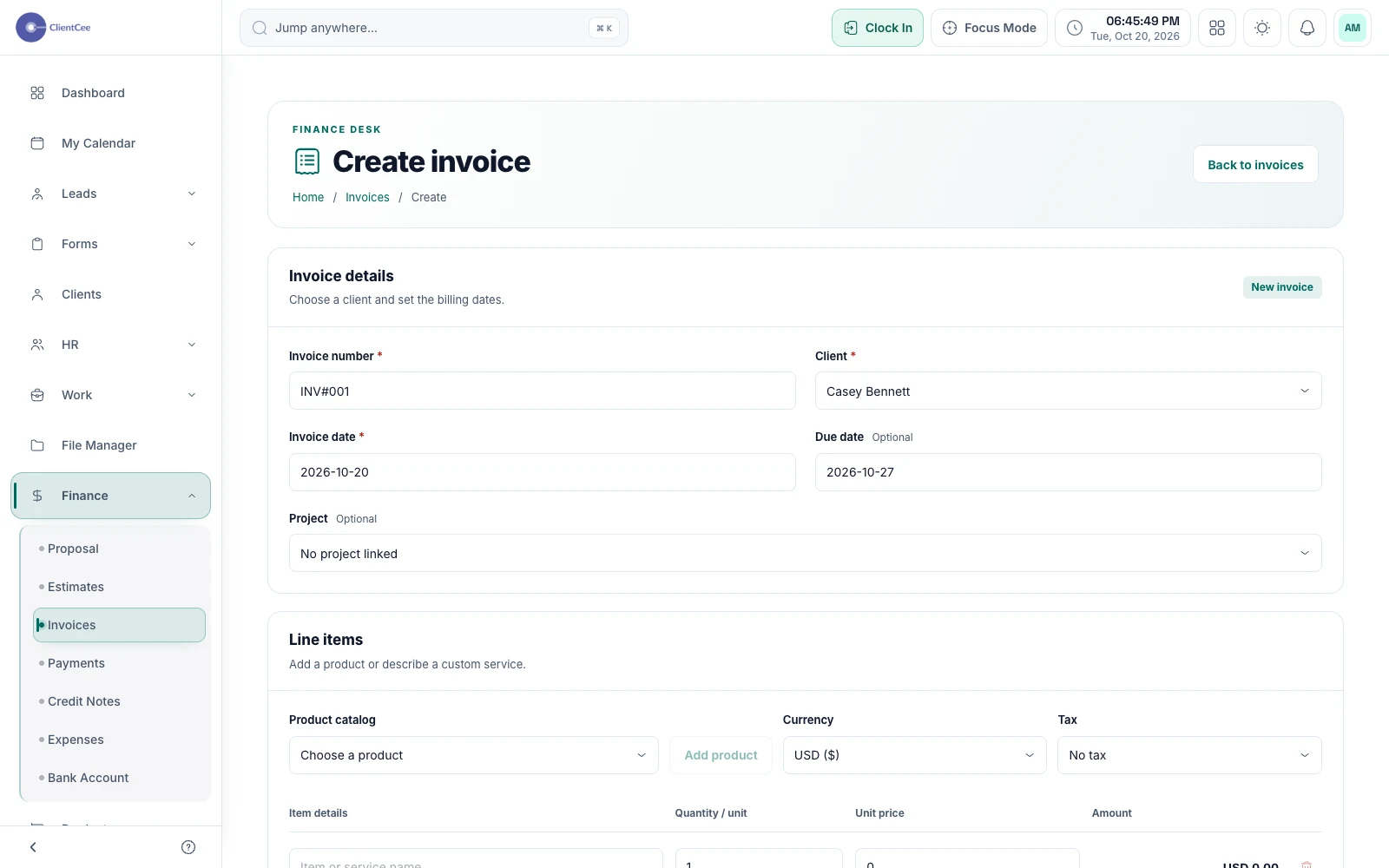
Create an invoice. Demo data. View full size ↗ - Step 2
Review dates, items, and totals
Set the invoice and due dates, enter the agreed line items and quantities, and confirm currency, tax, discounts, and the resulting total.
Use the actual billing agreement. A client review or completed task does not by itself establish what should be billed.
- Step 3
Choose the save or send action
Select Save invoice to create the record, Save draft to retain a draft, or Save & send to save and email it when delivery is configured.
Read any delivery error carefully. An invoice may have been saved even if email sending failed. Do not assume marking a record as sent delivered an email.
- Step 4
Check the saved invoice and delivery result
Open the saved invoice and review the client, project, totals, status, and available sending actions. If outgoing email is not configured, save now and send later after configuration.
An emailed invoice is not proof of receipt or payment. Check recorded payments separately. The screenshot uses a pre-created synthetic invoice; no real email or payment occurred.
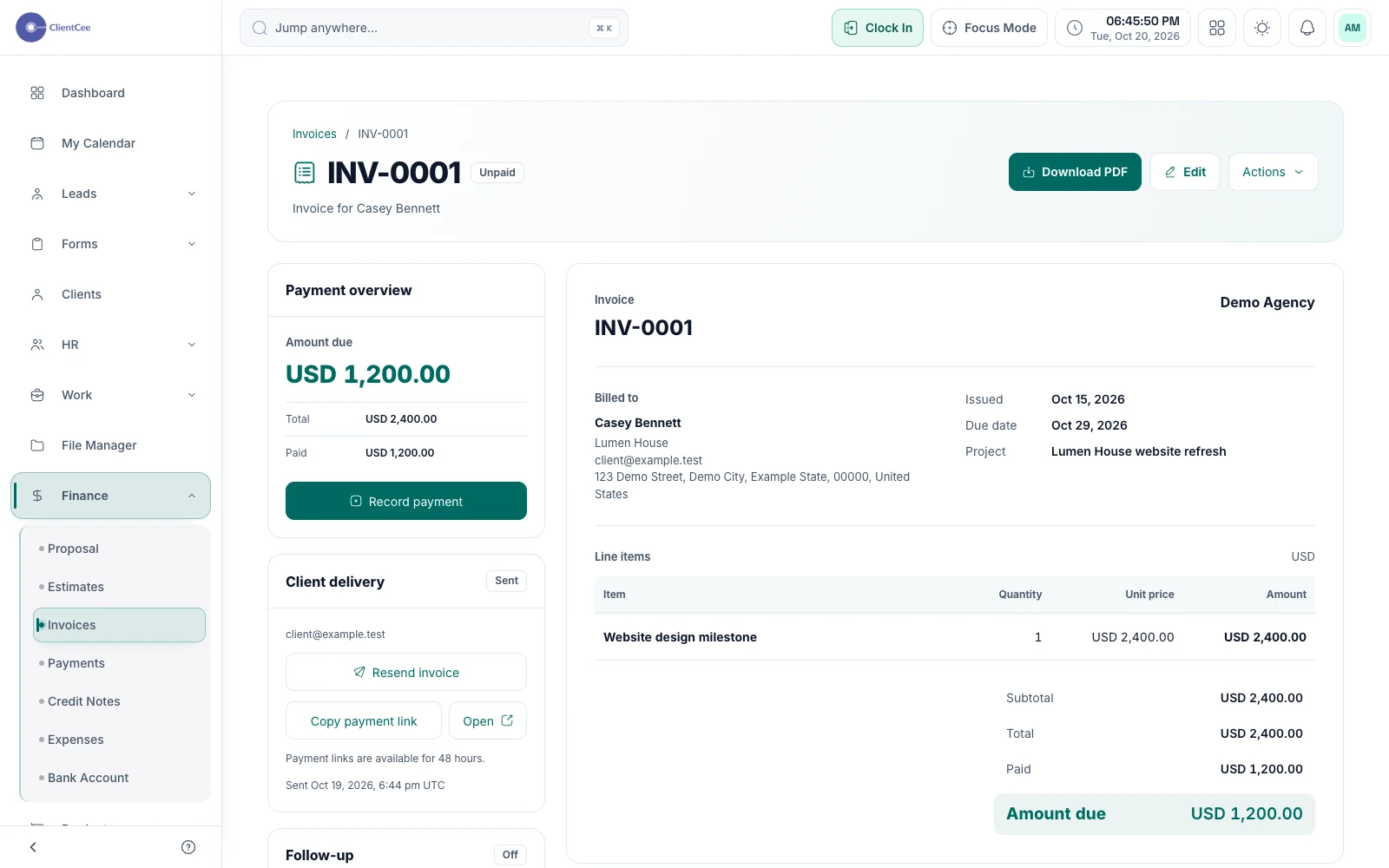
Invoice details and sending actions. Demo data. View full size ↗
You’re ready for the next step
Check the result.
The correct invoice is saved with reviewed amounts. You know whether email sending was attempted successfully or needs configuration, and you have kept payment status separate from delivery status.
When you need a little more clarity
Common questions.
Why does Save & send report an error?
Check the client email and outgoing mail configuration. The application rejects sending through the log or array mailer. A saved invoice can be sent later from its detail page.
Did marking an invoice as sent email the client?
Do not assume so. Changing a status and executing the email-send action are different operations. Read the actual delivery message and verify the configured sending workflow.